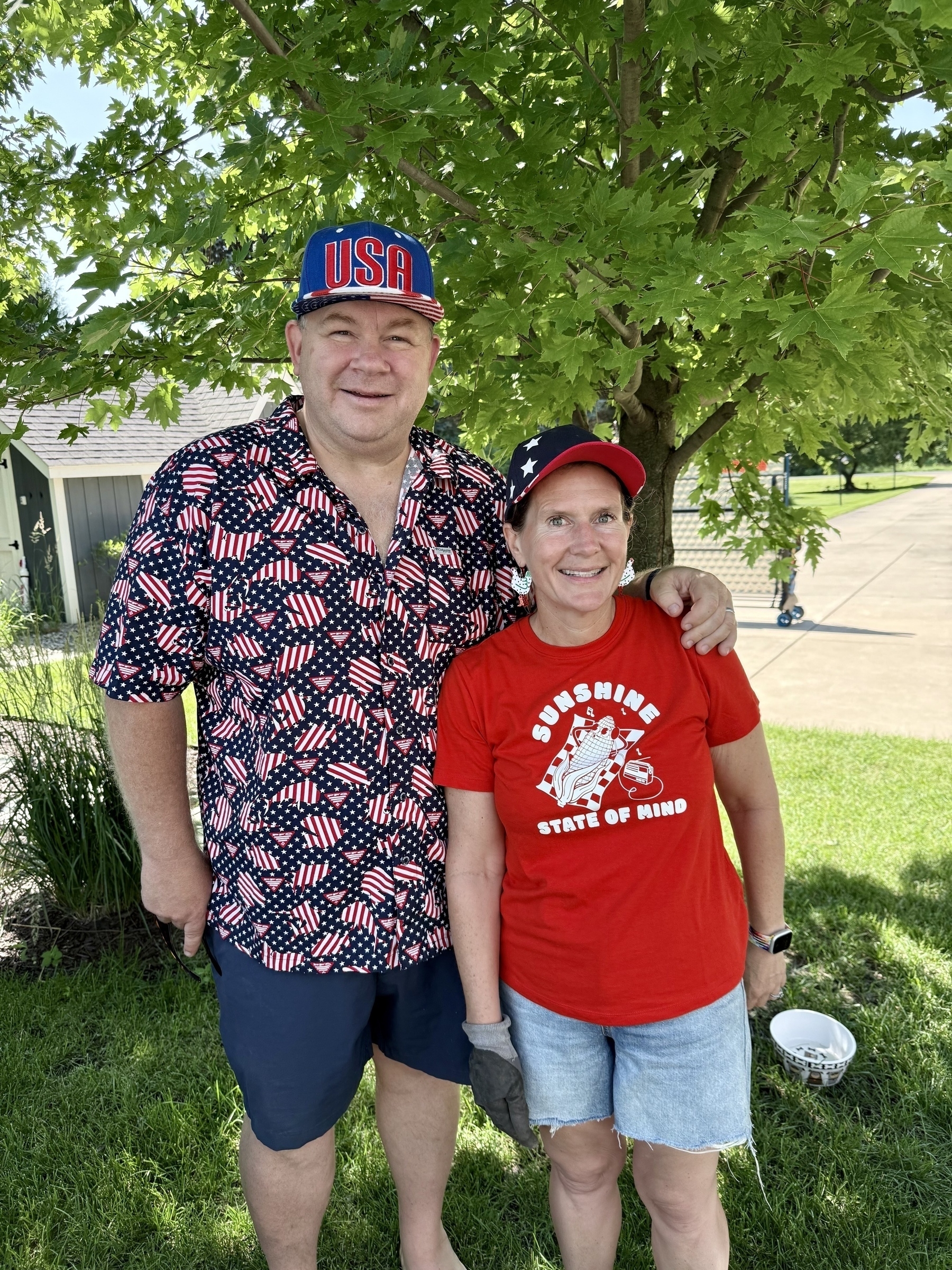
I had a blast hacking MediaWiki tonight with my awesome book club gang: John Riedl, Dan Frankowski, Erik Jordan, and Tom Erickson.
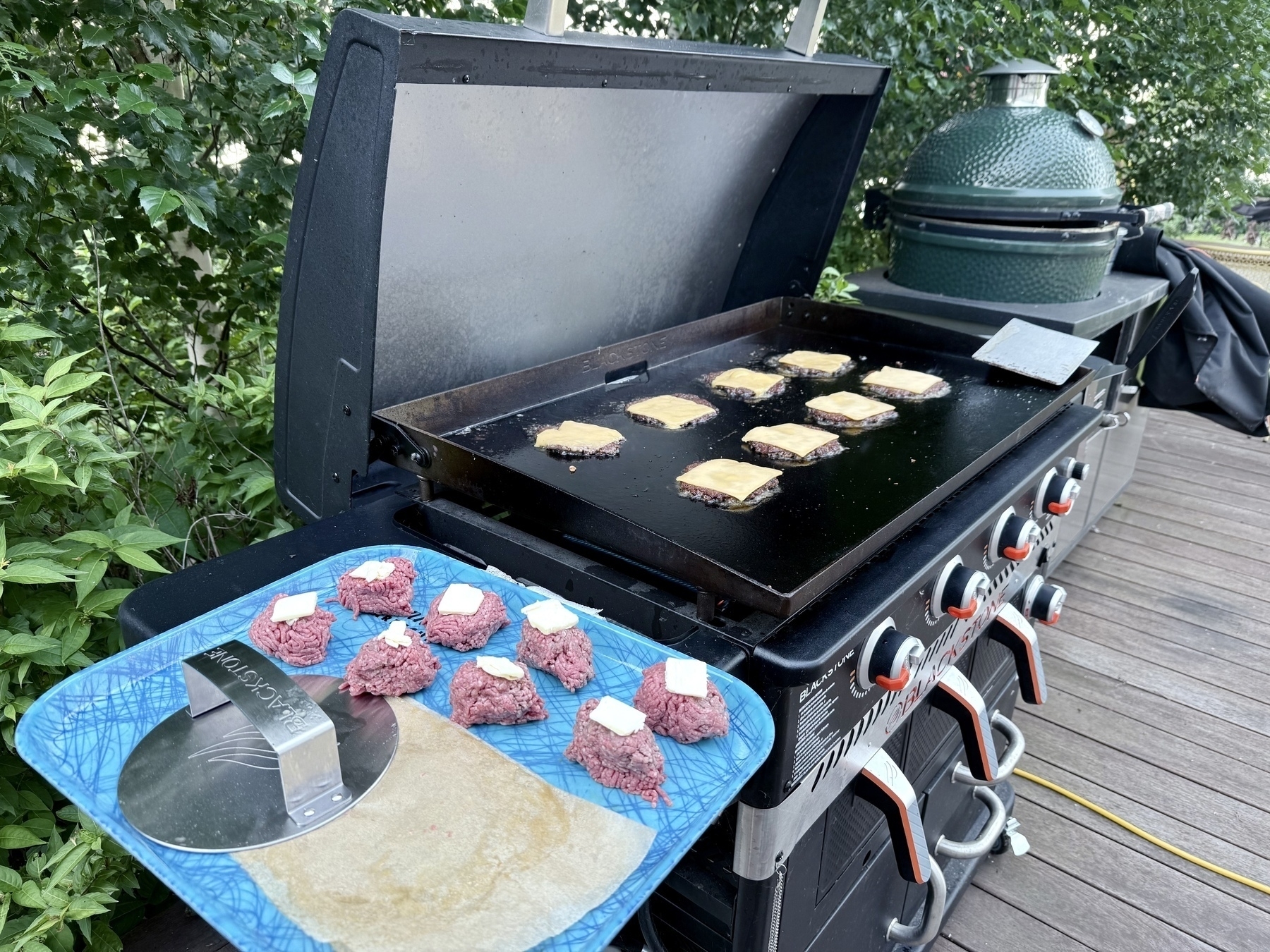
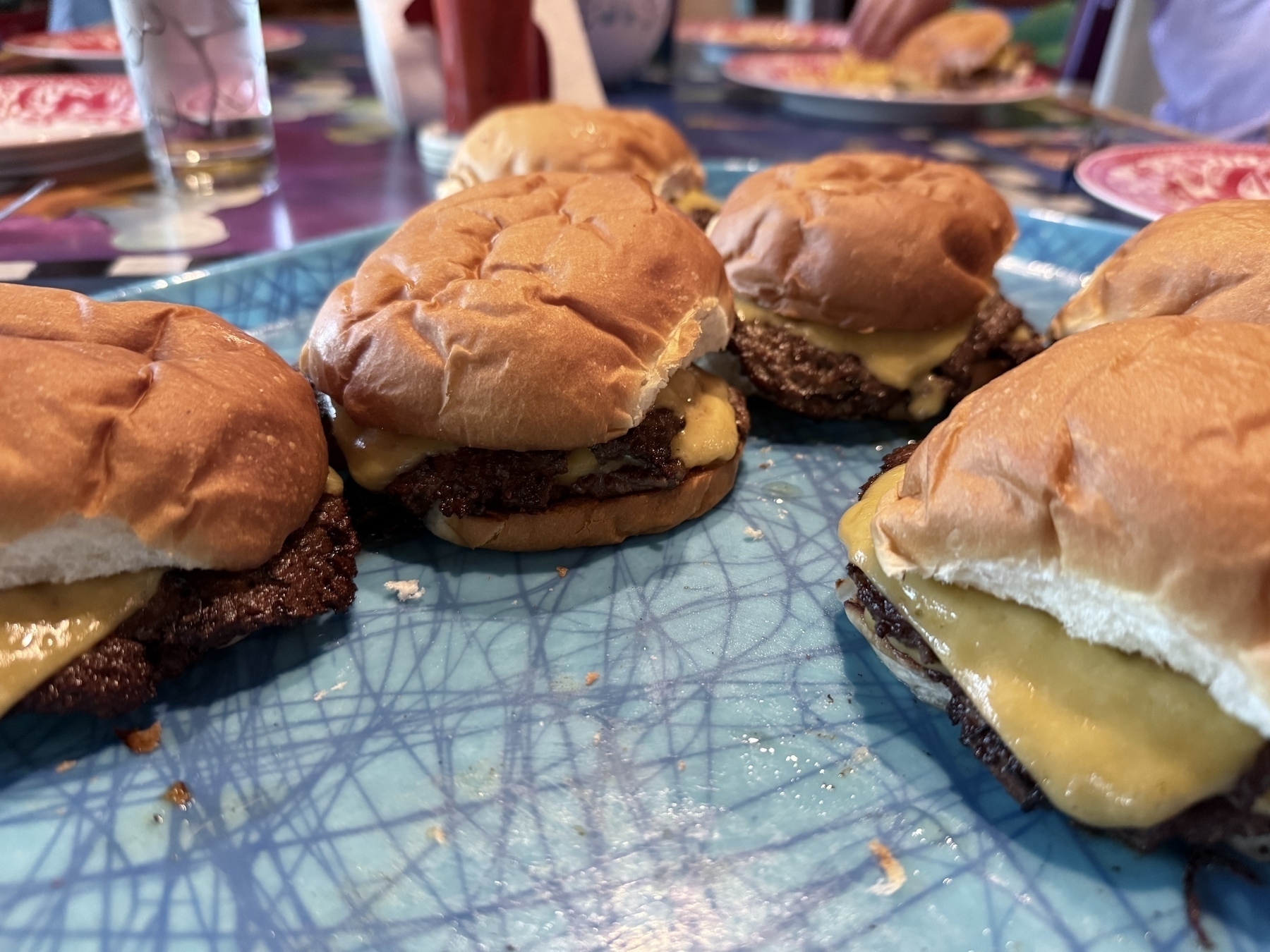
Delicious smashburgers tonight. Everything else as dialed in and just right! 🍔🍔🍔
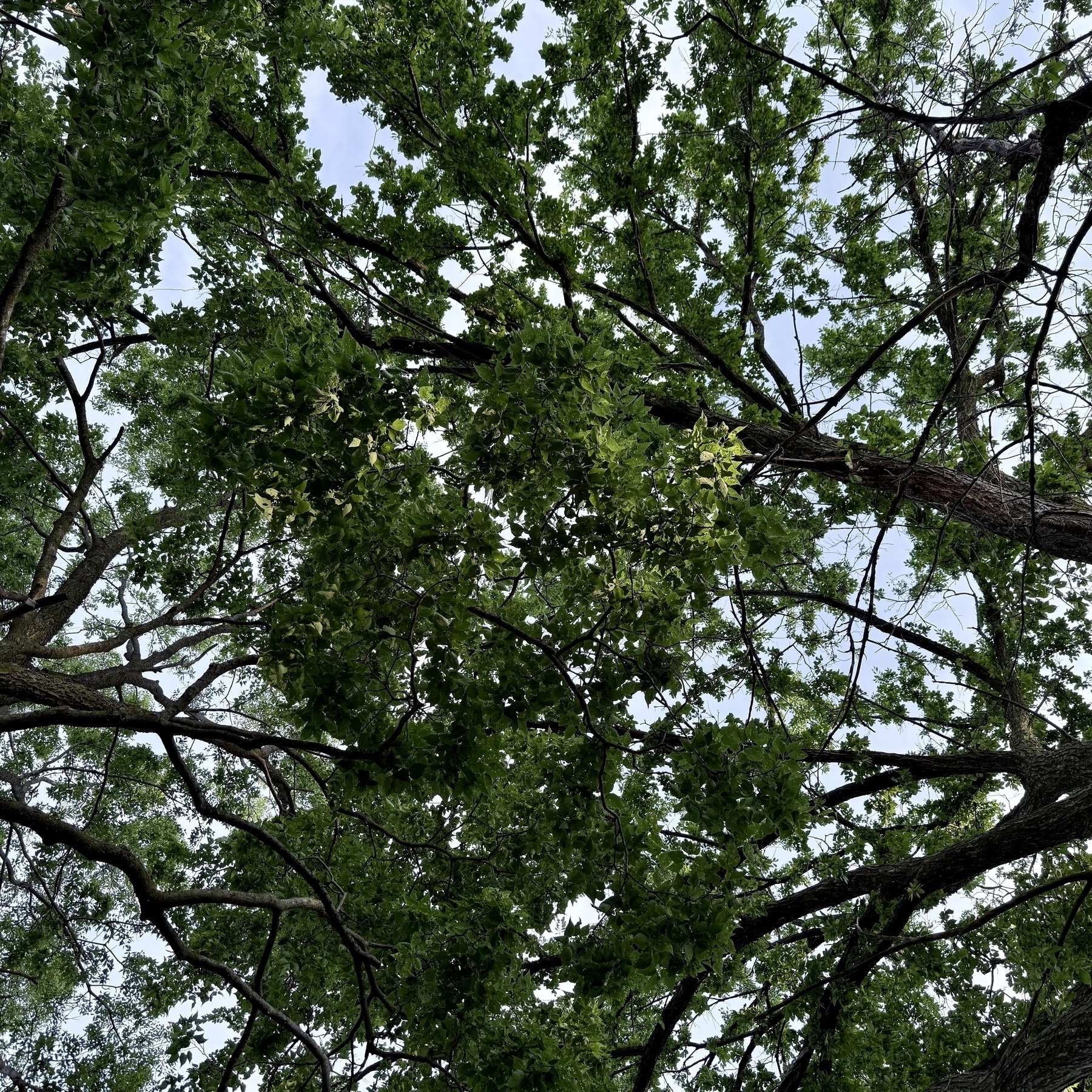
Look up. 🌳
It makes me super nostalgic that digg is back on the web — my profile. I felt compelled to order a shirt in celebration. 🎉
I submitted POAP2RSS to the POAP Directory of apps that extend the POAP ecosystem. 🤞
Absolutely incredible valuation — first to $4,000,000,000,000.
Nvidia became the first company to reach a market capitalisation of more than $4trn. The chipmaker has prospered despite concerns about Mr Trump’s tariffs and the rise of Chinese artificial-intelligence firms. Shares in the American company soared by almost 3% on Wednesday before falling slightly. Nvidia’s rise has been rapid. It only hit a valuation of $1trn in 2023. — The Economist, World in Brief, July 10th 2025
And I thought NVDA was overvalued 2 years ago. Wow.
Dark Clouds. Go United! ⚽️

With the help of POAP2RSS combined with rssrssrssrss.com and a new micro.blog account at @POAPChallenge I’ve completely revamped how activity is shared for this fun summer scavenger hunt I created called 612 POAP Challenge. Check it out, particularly if you are near Minneapolis! 🤩
We all saw Mission Impossible: The Final Reckoning tonight. It was absolutely bonkers but still a fun story and the good guys win in the end! 🍿


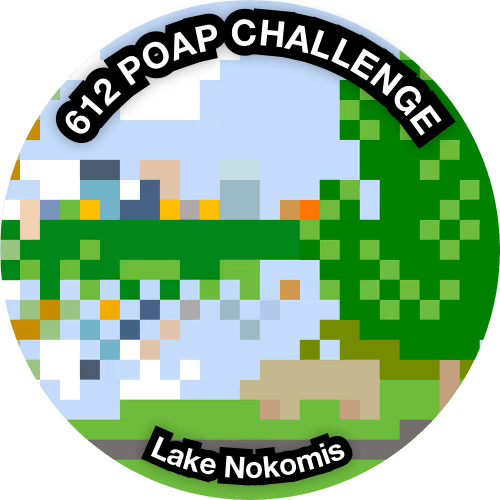
POAP 7387993 at Lake Nokomis — 612 POAP Challenge.
First time for me — submitted a pull request to a public repo to make a small change that I’m hoping gets merged for rssrssrssrss. 😊
Vibe Coding POAP2RSS
Ever since I created my first POAP drop I’ve wished that I could see claims of POAPs in Feedbin. What a great way to keep informed of the tokens that people are claiming! As I created more POAPs I realized that I also would like to subscribe to other people and see what POAP events they are claiming. And as I played around more with them I realized it would be so useful to be able to hook POAP claims up to automation platforms like IFTTT, Zapier, or Make — all of which support RSS out of the box!
I’ve been going deep on all things AI and I wanted to experience vibe coding for real versus just reading blog posts about others doing it. I’m a big believer in playing directly with tech to learn it. So, why not try creating the thing I’ve always wanted with POAPs by vibe coding it?
I’ve now successfully created, and already an extensive user of, POAP2RSS! This simple service allows you to subscribe to RSS feeds for POAP events as well as addresses of collectors. It is magical and I love it already!
Don’t know what Vibe Coding is? Let’s keep the vibe and ask AI.
Let’s go! 🔥
Vibe Prototyping
First I’m going to share that I only realized I was prototyping a solution in retrospect. What I really did was go to Claude and start a new conversation.
It created a new artifact and put about 250 lines of Python code in there. Voila! Now what?
Let me qualify my skills here. I can bang around in most languages reasonably well. I can navigate Python the best. I can read code very well. I’m pretty basic when it comes to writing it. I’m a solid scripter but can quickly get out of my league. This Python code was better than anything I could do but I was able to navigate it easily enough.
But what do I do now? I have an AWS account and have setup S3 buckets. I’ve never setup a Lambda function though. Let the vibes flow…
I got another artifact now with step-by-step directions on what to do in the AWS Console. Brilliant!
I followed the directions and then actually ran a test, which Claude told me how to do.
Claude and I went back and forth like this for a while with me running the Lambda, an error coming back, me sharing the error back to Claude, it making updates and me applying those. And then…
I hit a big stumble getting routing working through API Gateway to the Lambda function and Claude corrected me when I started going the wrong way.
Okay Claude — got it! 🫡
After this session I had a working prototype. The code was ugly. It turned out we needed to include OAuth support and added that much later. The design of the API endpoint was bad but it was working. It only took about an hour but I had explored this surface area deeply. I knew broadly what the service should look like, what some of the edge cases were going to be, and what was required to integrate with the POAP API.
Now to come back later and turn this into something that would be real. I was about 1 hour into exploring this topic and now knew a lot.
I deleted the Lambda function and all of the configuration I had created. It was created trial and error and I wanted to now be more rigorous.
Expand Features
Creating the prototype gave me a bunch of notes and a much better understanding of what was going to be needed to make the solution work right. I wanted to make sure I wasn’t missing some things so I decided to turn to ChatGPT o-3 and Deep Research to explore the necessary features.
o-3 then went off for about 10 minutes to do some research. I decided to watch it and had a real chuckle when I noticed that Deep Research was reading my own blog! It turns out over the years I’ve written about things that POAP could add including RSS feed support. Actually multiple times.
After this was done I had a full feature description for POAP2RSS!
I read through it all and felt together we had vibed the right set of things to consider in creating this solution. Now to make this thing work!
Create Service
With the features of POAP2RSS now figured out it was time to build the solution. I was comfortable with how Claude had worked for this Lambda function in the prototype so I went back to Claude and attached the full document for the features along with a prompt to code it.
Claude’s comment on “substantial implementation” made me chuckle.
I had a big miss in my ask though — I never told it what URL POAP2RSS would run on and what the path for the endpoints should be! Ugh.
This was a little interesting to me since an actual developer working with me would have never just assumed they knew this. They would have stopped and requested clarification since this is such an obvious miss in the request.
This version of POAP2RSS had more complexity with the caching in DynamoDB. I needed a good set of documentation to know how to create everything in AWS Console.
With that Claude created a seven step detailed deployment document. Nice!
At some point here I hit a significant issue with the SSL Certificate being configured right to route through API Gateway and on to the Lambda function. I kept getting issues with the certificate being incorrect. This blocked me for about an hour as I was trying to debug things. I finally found that I had the Cloudfront configuration incorrect and pointing to the wrong resources. Ugh!
With that issue solved I had a fully deployed service and it was working exactly how I wanted it to work. Notable to me:
- OAuth and API keys were never even something I needed to consider, it just worked.
- If Claude could have talked directly to the AWS APIs it could have set this up way faster than I could. I could have had it create a Cloud Formation script as an alternative.
This round took me about 2 hours to get working entirely.
Get Professional
I now had POAP2RSS working and working well. I now wanted to get this cleaned up and something I could maintain. I created a new repo in Github for POAP2RSS and moved the prompts, docs, and source into the repo.
I now wanted to explore what I could do with OpenAI Codex. I attached Codex to the code and asked it. (I’m abbreviating Codex’s responses. It is fairly verbose and detailed and would be too much to include all of. It also has complicated buttons and links that are hard to replicate.)
Codex operates much differently. It creates a whole development environment for every ask, gets all the code from the repo, and does whatever it needs. I then asked it a really general question.
I thought it was hilarious that Claude had made a typo in the description and indeed it had. That was simple enough. The CDATA escaping of HTML in the descriptions was a notable miss for Claude, and frankly even for o-3 to miss in the features. Nice catch!
I sequently asked it to fix each of these issues and it issued a pull request for each one.
- Fix description typo
- Use CDATA for HTML descriptions in RSS items
- Fix claimant link to use owner address
I reviewed and merged each of these pull requests.
Very cool! 🔥 I now have a fully working service and a reasonably clear code base. I wasn’t entirely happy though with the HTML that was being put into the RSS feed descriptions. This is where I hit some “fit and finish” work that I ultimately did not find vibe coding a good approach for. I started to ask Codex “Please reformat the descriptions for events to look like…” and realized it was more work for me to ask Codex than to just go into the code and cleanup the strings myself.
I did some actual coding here. 🛠️ It was fun to tweak and make it just what I wanted. I found a number of things that needed to be cleaned up:
- The descriptions of all events needed to be cleaned up.
- The RSS item GUIDs that Claude had used were not URL’s as they should be so I fixed all of those.
- A number of the links were not right so I cleaned them up.
I now have a fully working service and it is even sending information as I would want it!
Build the website!
Early in the project I had Claude create an index.html that I could drop into the www directory to have a simple website. It was okay but not at all the design I wanted. So, the next day I decided that this was a perfect ask for Codex so I asked it to build me a website.
Wonderful! I merged in the Redesign POAP2RSS website and it was great.
I found myself in another “fit and finish” situation where it was much easier for me to just edit the HTML to what I wanted rather than asking Codex to do it for me. So I tweaked away and in not much time had a site up and running on www.poap2rss.com that made me happy!
Good Vibes!
I’ve been playing with this service now a bit over the holiday weekend. It is working great. I’ve already used it to do a ton of automation for the 612 POAP Challenge. I’ve added subscriptions to several people that collect POAPs which is super fun.
The experience of Vibe Coding this was incredible. It took something that was beyond my capabilities and made it accessible. I shared the project with someone that knows and they said the code looked like it would have taken “2 days” to create the source. I got this done much faster, and did a lot more than just the code.
It also highlighted for me how this approach isn’t just about the code. I used AI to help create the stories as well as create the documentation and website. Those were huge helps.
I’m tracking open issues so I have some items that I’ll likely use to test Cursor or do further work with Codex.
Overall, this was a very rewarding project to create and I learned a lot from making it a reality.
PS: Thank you to Matt for the slick message styling CSS for Tiny Theme!
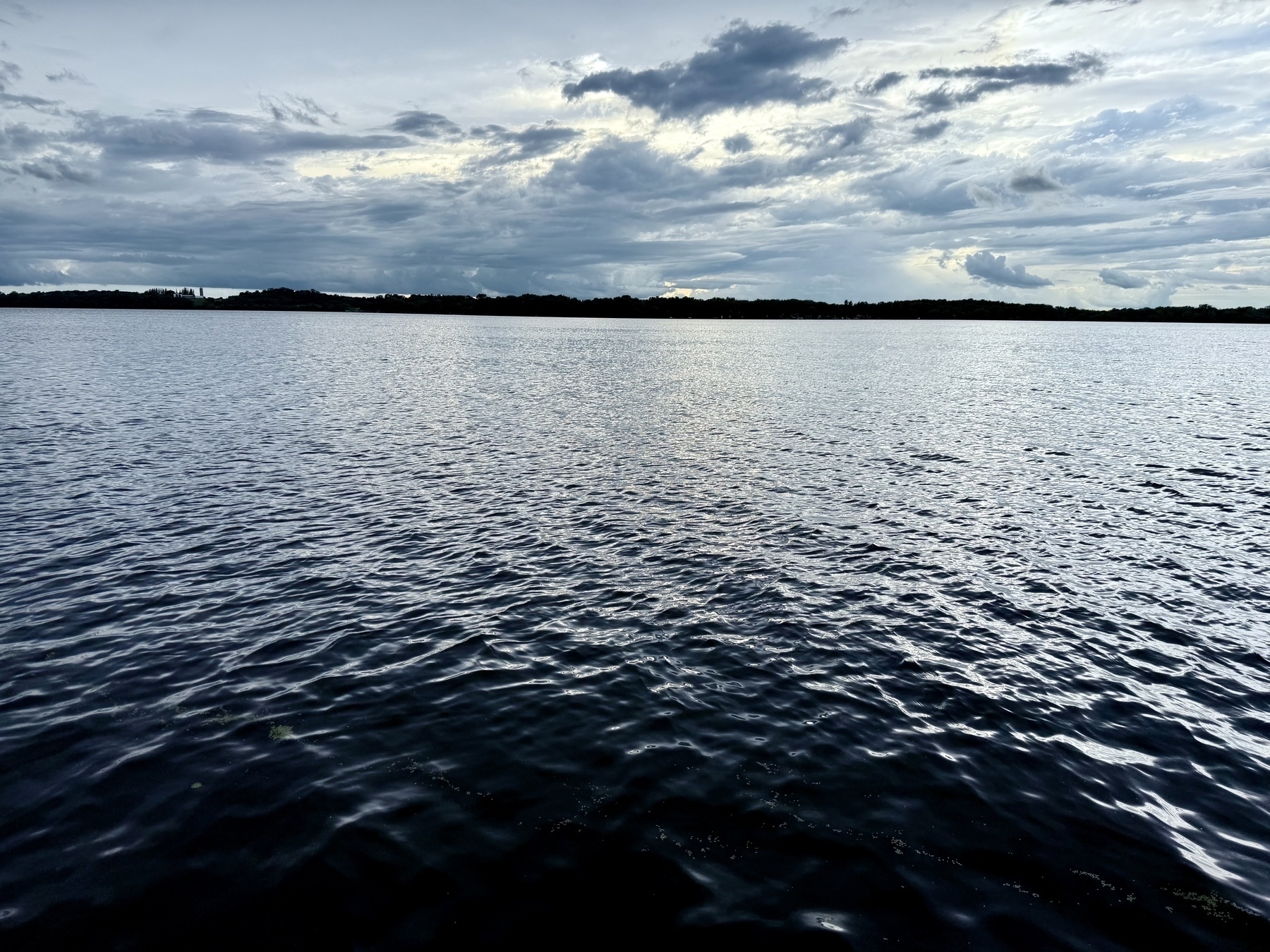
Quiet evening on Cannon Lake.
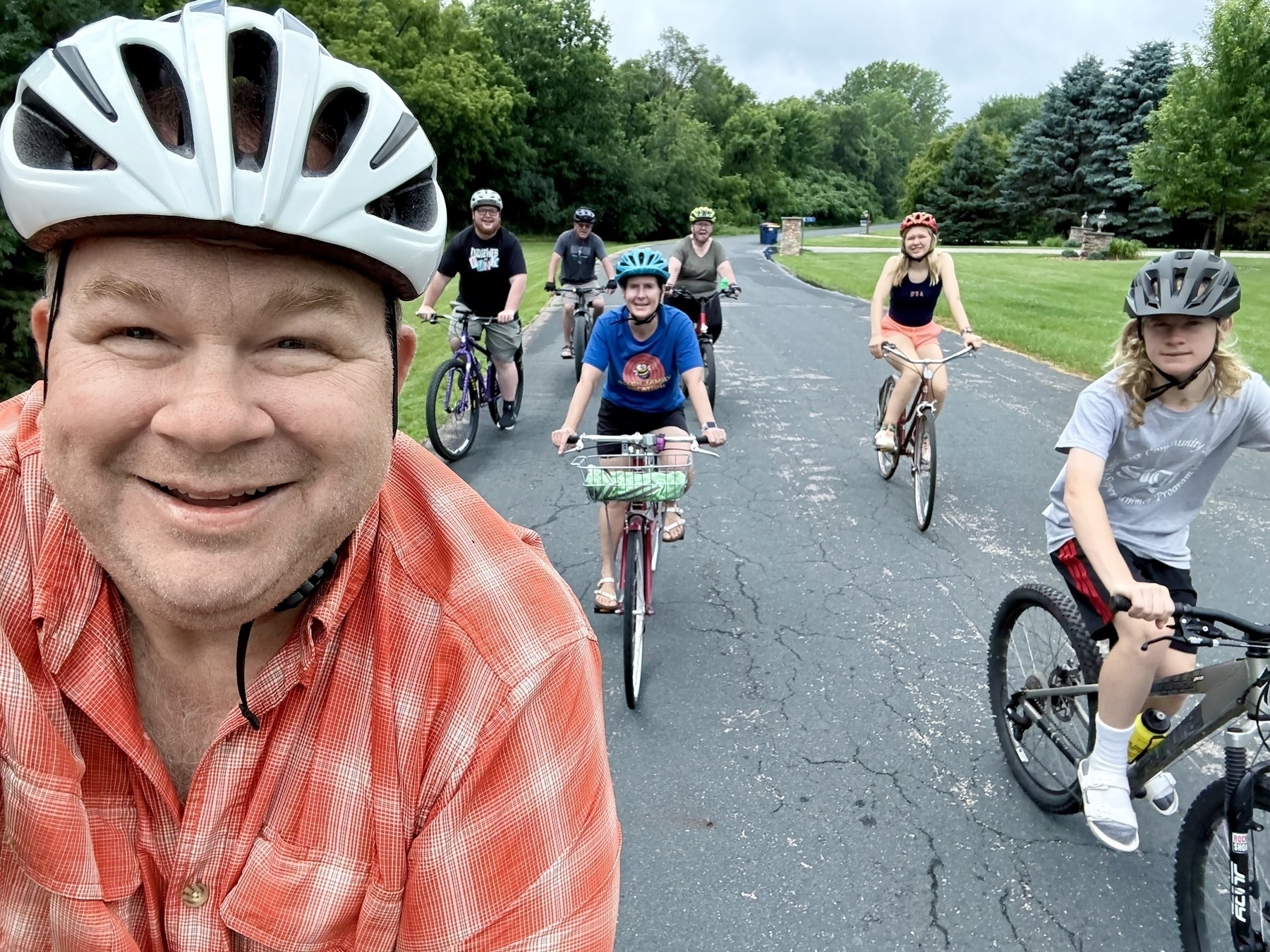
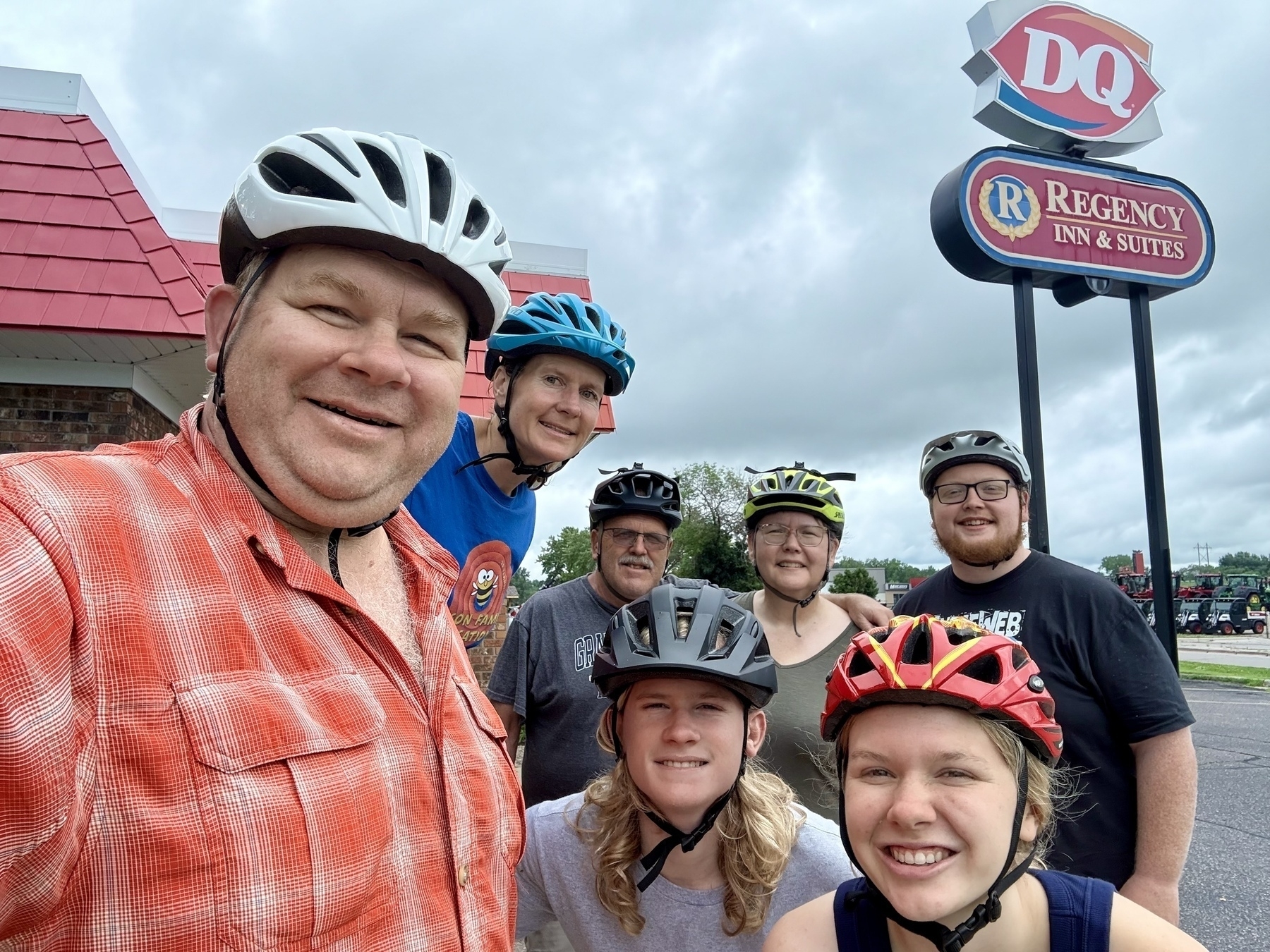
We had a nice bike ride to Dairy Queen with my Uncle Tim and Aunt Holly and Cousin Quinn today. We got caught in the rain on the way back.
Watching F1 qualifier and need more screens. 😊

Worked with OpenAI Codex this morning and redesigned the website for POAP2RSS. It gave a clean structure as requested that I could fill in and make better.

Happy 4th of July! 🇺🇸